
Save it to your phone
Add Anvil Safety to your home screen and it opens like any other app — its own icon, full screen, no browser bar.
iPhone or iPad
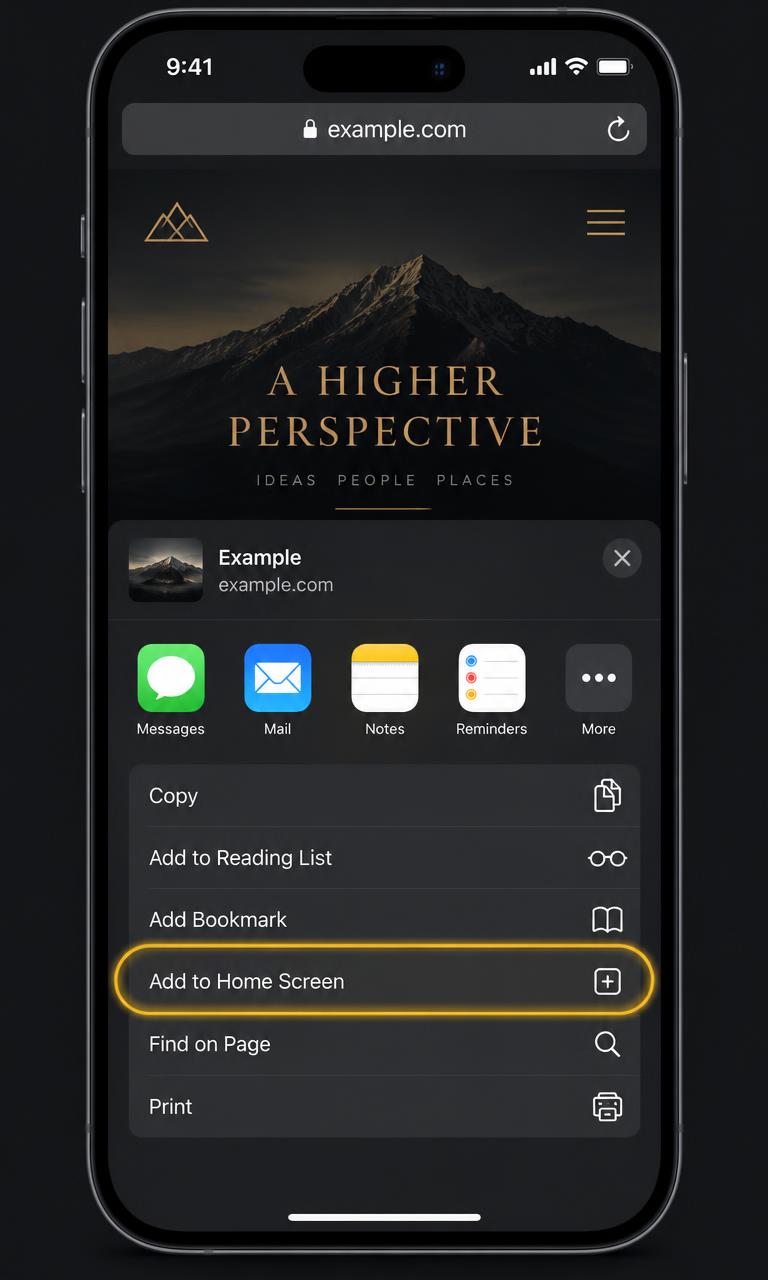
Use Safari — Chrome and Facebook do not show this option.
- 1Open the-anvil-and-company-training.lovable.app in Safari.
- 2Tap the Share icon — the square with an arrow pointing up, in the bar at the bottom of the screen.
- 3Scroll down and tap “Add to Home Screen” (in Spanish: “Añadir a pantalla de inicio”).
- 4Tap Add. The Anvil icon appears on your home screen with your other apps.
Android phone or tablet
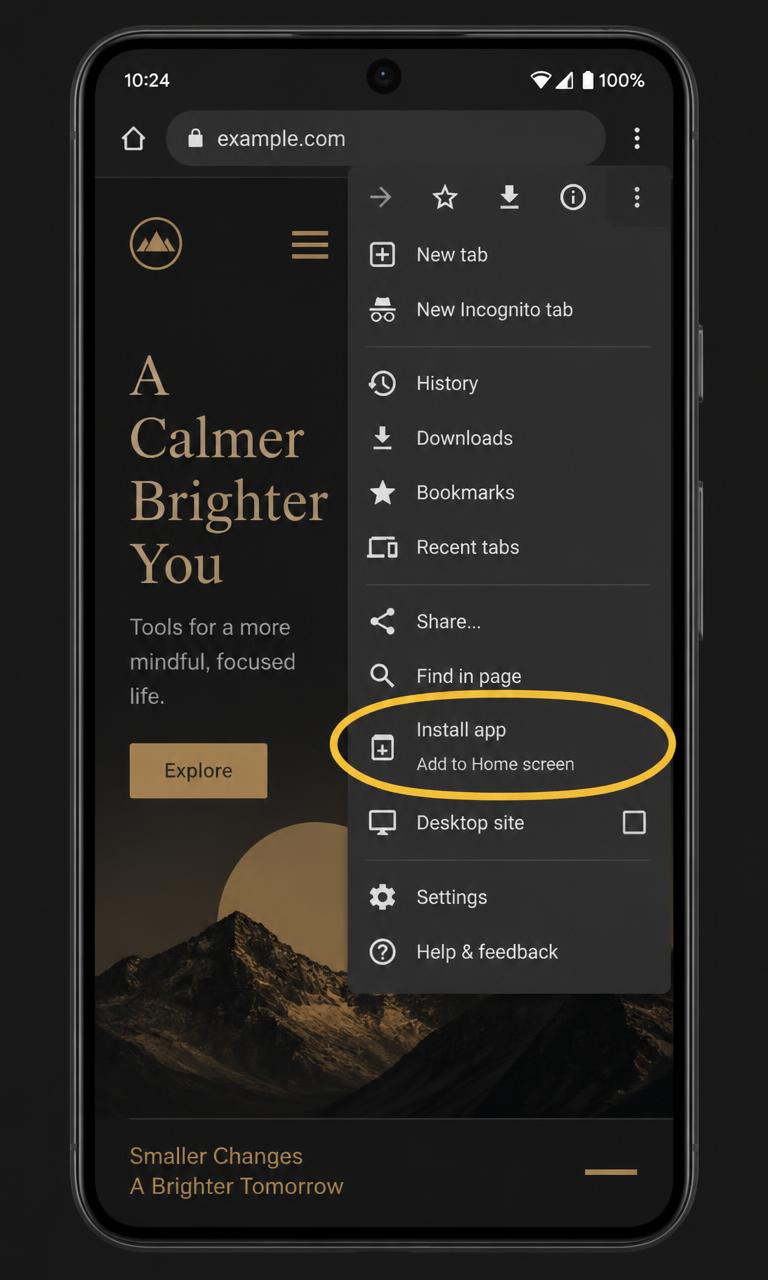
Use the Chrome browser.
- 1Open the-anvil-and-company-training.lovable.app in Chrome.
- 2Tap the three dots (⋮) at the top right of the screen.
- 3Tap “Add to Home screen” or “Install app”.
- 4Tap Add or Install, then OK. The Anvil icon is on your home screen.
Computer
Chrome or Edge on Windows or Mac.
- 1Open the-anvil-and-company-training.lovable.app in Chrome or Edge.
- 2Look at the right end of the address bar for a small install icon (a monitor with a down arrow).
- 3Click it, then click Install. The site opens in its own window and you get a shortcut.
Good to know
- Your course progress is saved on the device. Sign in so it follows you to a new phone or computer.
- The app opens the live site, so it needs an internet connection — it does not store lessons for offline use.
- Added it before and the name or picture looks wrong? Delete the old icon, then add it again.
Anvil & Company is independent and not affiliated with OSHA, MSHA, DOT, or any course provider. Saving the app to your phone does not change what you pay for — courses, sessions and seats are billed the same way as on the website.